Maintenance and calibration
This chapter describes the maintenance tasks that may be required in the normal course of operating the LI-6800 console and head. Additional maintenance procedures are available for chambers; see Maintaining the fluorometer, Maintaining chambers and light sources, Maintaining the aquatic chamber, and Maintaining the soil chamber. Any procedures other than those described here should be performed by LI-COR personnel or a representative.
Updating the software
Software packages are released periodically that fix bugs and add new features1. Update packages may include firmware for the head, console, fluorometer and the soil chamber, and are available from Software Downloads.
There are two methods of updating the LI-6800 software:
-
Installer apps (Windows and macOS) can be used to update from any previous version.
-
LI-6800 Firmware Updates tool (built-in to version 2.2). No app required. Only available if the LI-6800 already has a version of 2.2 installed.
Updating via Windows or macOS computer
Caution: Do not attempt the update with a computer that is using a wireless network connection. Do the update from a computer that is directly connected with an Ethernet cable to the instrument or the network. The update requires a computer running Windows 7 or newer or macOS.
After you've downloaded the software package to your computer:
- Install the updater to your computer.
- It is called something like li6800-updater-2.2.x.exe (Windows) or li6800-updater-2.2.x.app.zip (macOS).
- Connect the LI-6800 to your local network or your computer using the RJ-45 network cable.
- Power on the LI-6800.
- Be sure that the instrument has fully charged batteries or is powered from the AC power adapter so that the instrument will not power off while the update is underway.
- Launch the updater application.
- You'll see a list of all LI-6800 consoles on your network.
- Note: If you cannot see your LI-6800 in the list, make sure you can ping your console’s serial number (68C-xxxxxx) in Command Prompt (Windows) or Terminal (macOS) and get a reply. If not, make sure your console is properly connected to either your computer or network switch. If you do get a response from the instrument, check if Bonjour services are running on your operating system. If Bonjour services are disabled or stopped, start them back up.
- Select the console (68C-xxxxxx; LI-6860) and click Update LI-6800.

- The updater will display the instrument and attached components that will be updated.

- Click Update to proceed.
- Be sure that your computer doesn't go to sleep while the update is underway. The updater will install the software on each component and notify you when it is done.
Note: You do not need to fully attach the soil chamber to update its firmware. Instead, you just need to connect the data cable between the chamber and the LS connector on the head.
Updating via Firmware Updates Tool
If your console has some version of 2.2 (e.g. 2.2.01) already installed, you can use its Firmware Updates tool for the update.
-
Download the tar.gz update file (e.g. li6800-2.2.02-fwupdate.tar.gz) from Software Downloads.
Note: Sometimes downloading a file renames it (e.g. it might change to li6800-2.2.02-fwupdate (2).tar.gz because it was already in your computer’s downloads folder). If you have version 2.2.01 (or 2.2.01.1) on your console, you will need to remove any spaces that were added to the name - otherwise you will encounter an error on the Firmware Updates screen (Figure 1) when you try to install it:
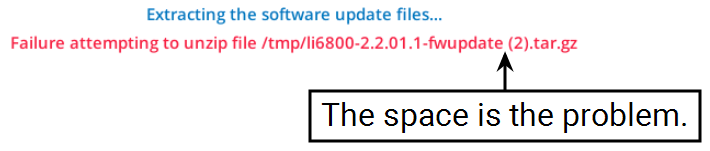
This is not an issue for the Firmware Updates tool in 2.2.02 and above.
-
Make this file available to the LI-6800 console using one of these two methods:
-
Copy the file to a USB removable storage device and plug it into one of the console USB ports,
-
-or-
-
Attach the LI-6800 file system and copy the file tot he folder
/home/licor/downloads/.
-
-
On the LI-6800 console, go to Tools > Firmware Updates.
Pick the file and tap Install Firmware.
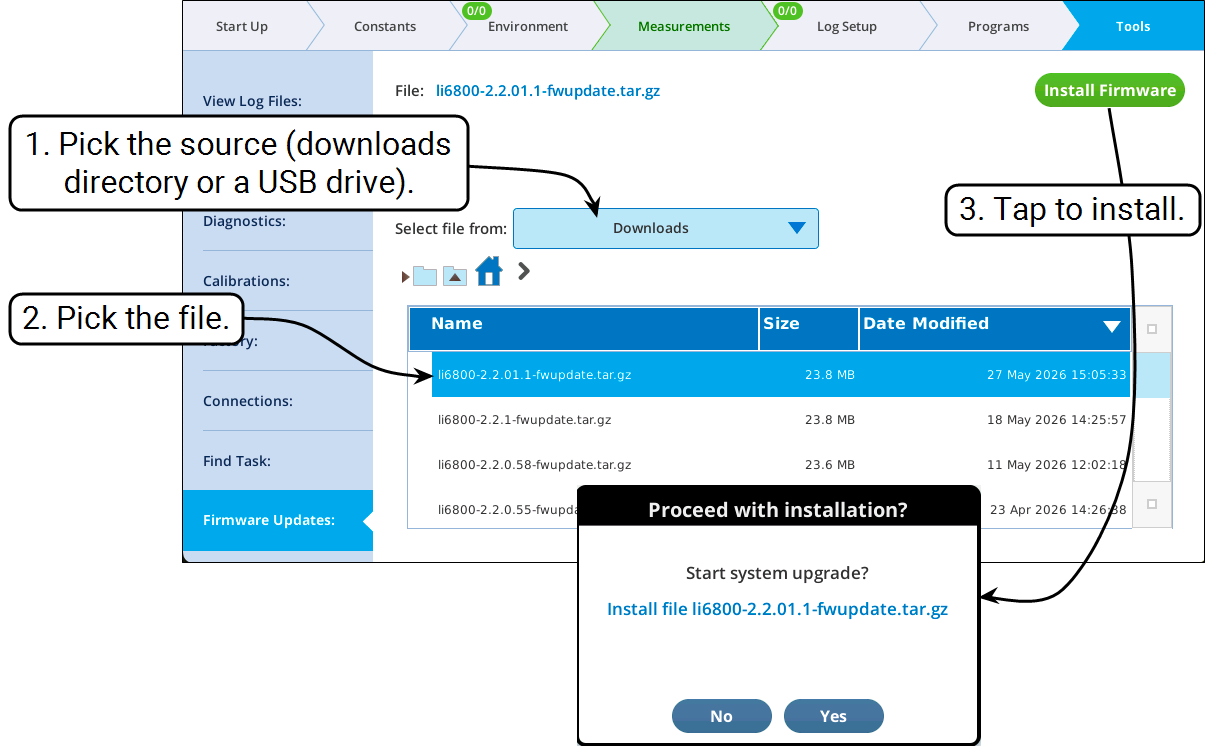
Figure 7‑1. Installing an update. -
Once the updater has unpacked and installed the files in the
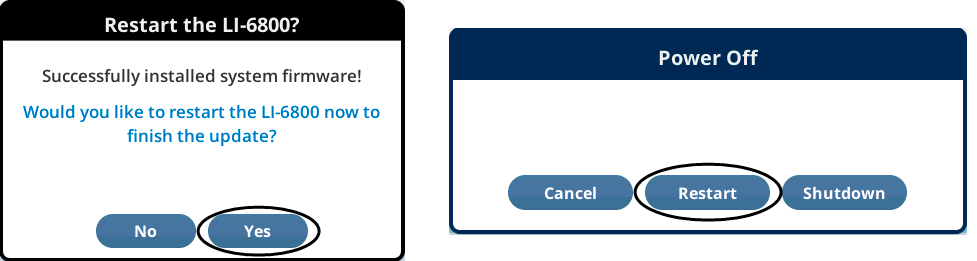
tar.gzpackage, the system will start using the new files on the next restart, which you can trigger immediately by selecting Yes then Restart.